
Supplier Cost Increased? How to Update Prices in QuickBooks Online in Bulk


Supplier costs change constantly. A vendor raises prices, freight increases, or material costs go up.
The problem isn't entering the new cost. The problem is making sure your selling prices change with it.
When you have hundreds or thousands of products in QuickBooks Online, updating costs and prices one item at a time can turn a simple supplier increase into hours of work—and leave outdated prices cutting into your margins.
Cost Changes Should Trigger a Pricing Review
When a supplier increases your cost, your selling price may need to change as well.
For example:
Current cost: $20
Current selling price: $26
New cost: $22
At $26, the product's original 30% markup is no longer maintained.
The important question becomes:
What should the new selling price be based on the new cost?
That might mean maintaining a specific markup, target margin, minimum profit, or another pricing rule.
QuickBooks Online supports product and service imports, including updating existing item data, but managing a large catalog still requires a consistent pricing process.
Why Cost Changes Get Difficult at Scale
Updating five products is manageable.
Updating 250 or 1,000 products is different.
A typical manual process looks like this:
Identify products with changed costs.
Enter the new costs.
Calculate new selling prices.
Update the products in QuickBooks Online.
Repeat for every affected SKU.
This creates opportunities for missed products, inconsistent calculations, and old selling prices remaining in place.
That's why bulk price updates in QuickBooks Online can become more than a time-saving feature. They can become part of your pricing-control process.
Don't Automatically Raise Prices by the Same Percentage
A 10% supplier increase does not necessarily mean your selling price should increase 10%.
Suppose:
Cost = $20
Selling price = $30
Markup = 50%
Margin = 33.3%
If the new cost is $22, pricing based on the new cost may produce a different selling price depending on whether you are targeting markup, margin, or a specific profit amount.
The better approach is to recalculate pricing from the new cost and your pricing strategy, rather than simply adding the supplier's percentage increase to your old price.
A Better Process for Supplier Cost Changes
A repeatable process looks like this:
Supplier cost changes → identify affected SKUs → recalculate prices → review margin impact → update QuickBooks Online
Before applying the changes, review the:
Old cost
New cost
Old price
New price
Markup
Margin
This gives you an opportunity to catch exceptions before the new prices reach customers.
For more on handling changing costs, see How to Manage Cost Changes and Pricing in QuickBooks Online.
Bulk Pricing Is About More Than Saving Time
Bulk update costs and prices in QuickBooks Online
The real benefit isn't just updating hundreds of products faster.
It's consistency.
When supplier costs change frequently, some products may get updated while others are missed. Some may use the correct markup while others continue using outdated pricing.
Over time, that creates pricing drift across your catalog.
A structured bulk-pricing process helps keep your costs, prices, and margins aligned. Bulk update costs and prices in QuickBooks Online. For more on applying pricing rules across products, see How to Easily Apply Markups & Markdowns Across Products in QuickBooks Online.
Keep Your Pricing Connected to Your Costs
Supplier cost increases are part of doing business. The risk comes from allowing those increases to sit in your catalog without reviewing the selling prices attached to them.
For businesses managing hundreds or thousands of SKUs, a repeatable process matters:
Know what changed. Recalculate what should change. Review the impact. Update in bulk.
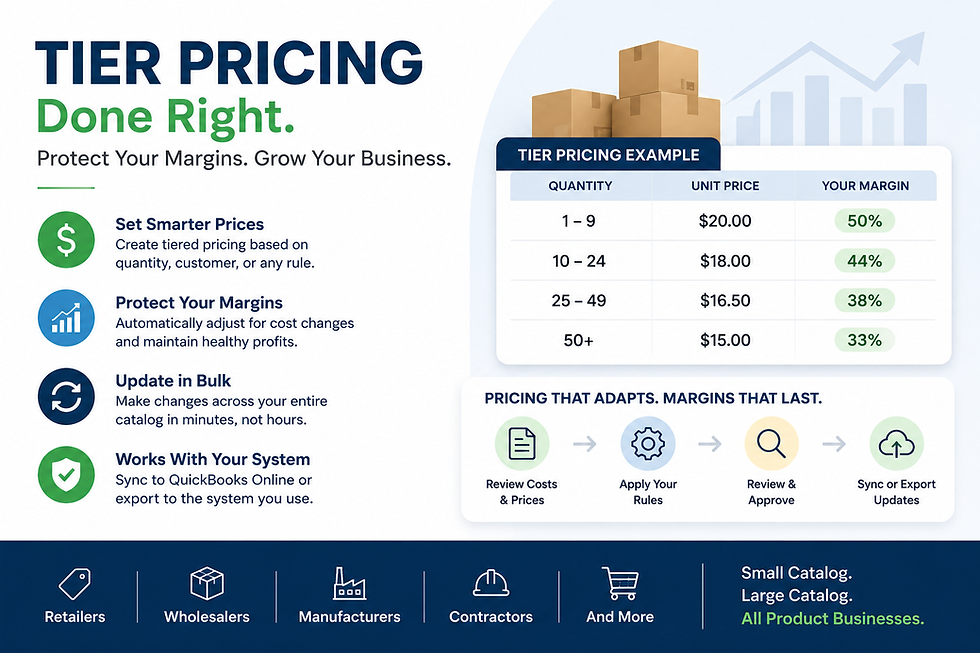
The Pricing Assistant helps businesses manage bulk pricing changes, apply markup or margin rules, and synchronize pricing data with QuickBooks Online.


Comments